Hierarchy Forge
Your Unity Hierarchy, upgraded. Organize scenes with colored folders and separators, watch your game run in Play Mode, and catch errors and missing references right where they happen.
Overview
Hierarchy Forge draws extra information and controls directly into Unity's Hierarchy window. Everything is editor-only: folders and separators are removed from builds, and no Hierarchy Forge code runs in your game.
Folders & separators
Colored folders and labeled section bars that keep large scenes readable.
Play Mode activity
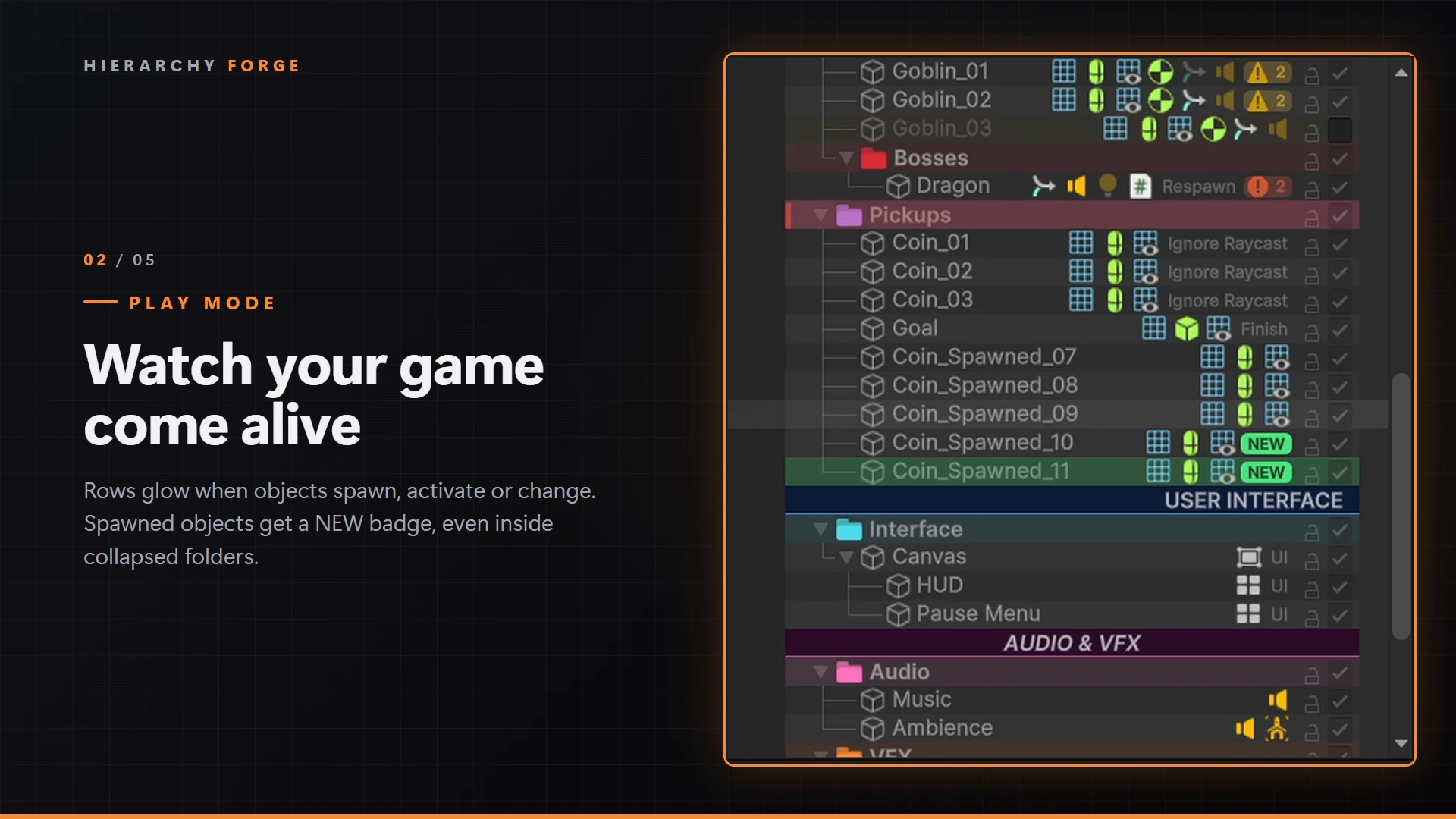
Rows glow when objects spawn, activate or change. Spawned objects get a NEW badge.
Console badges
Error and warning counts on the object that logged them, with a per-object log viewer.
Missing references
Badges for broken references and fields you forgot to assign.
Peek inspector
Hover a component icon to edit it in a popup without changing your selection.
Row tools
Active toggle, lock, component icons with click-to-toggle, tags, layers, tree lines.
Installation
- Open your project in Unity 2022.3 or newer.
- Open the Package Manager › My Assets, find Hierarchy Forge, then click Download and Import.
- Import everything. The package installs into
Assets/HierarchyForge.
The Hierarchy updates as soon as Unity finishes compiling. There's nothing else to set up.
| Folder | Contents |
|---|---|
Runtime | HierarchyFolder, HierarchySeparator components and the [HierarchyOptional] attribute. |
Editor | The Hierarchy renderer, all features, settings, menus and the build processor. Never included in builds. |
Demo | Demo scene and the ActivityDemoDriver script. Safe to delete. |
Documentation | This page, for offline use. |
Quick start
- Right-click in the Hierarchy and choose Hierarchy Forge › Folder. Drag objects into it.
- Or select several objects and press Ctrl + Alt + G (Cmd + Alt + G on macOS) to group them into a new folder.
- Add section bars with Hierarchy Forge › Separator and rename them to whatever the section should say.
- Select a folder or separator and change its colors in the Inspector.
- Press Play and watch the Hierarchy. Spawned objects glow and get a NEW badge.
- Fine-tune everything in Edit › Project Settings › Hierarchy Forge.
Folders
A folder is a normal GameObject with a HierarchyFolder component. It draws a colored folder icon, an optional bold or colored name, and a tinted row background. Empty folders show an outlined icon.
Creating folders
- GameObject › Hierarchy Forge › Folder creates a folder. When you use it from the right-click menu on an object, the folder becomes that object's child.
- Group Selection Into Folder (Ctrl + Alt + G) moves the selected objects into a new folder at the position of the first one.
- Or add the component yourself: Add Component › Hierarchy Forge › Hierarchy Folder.
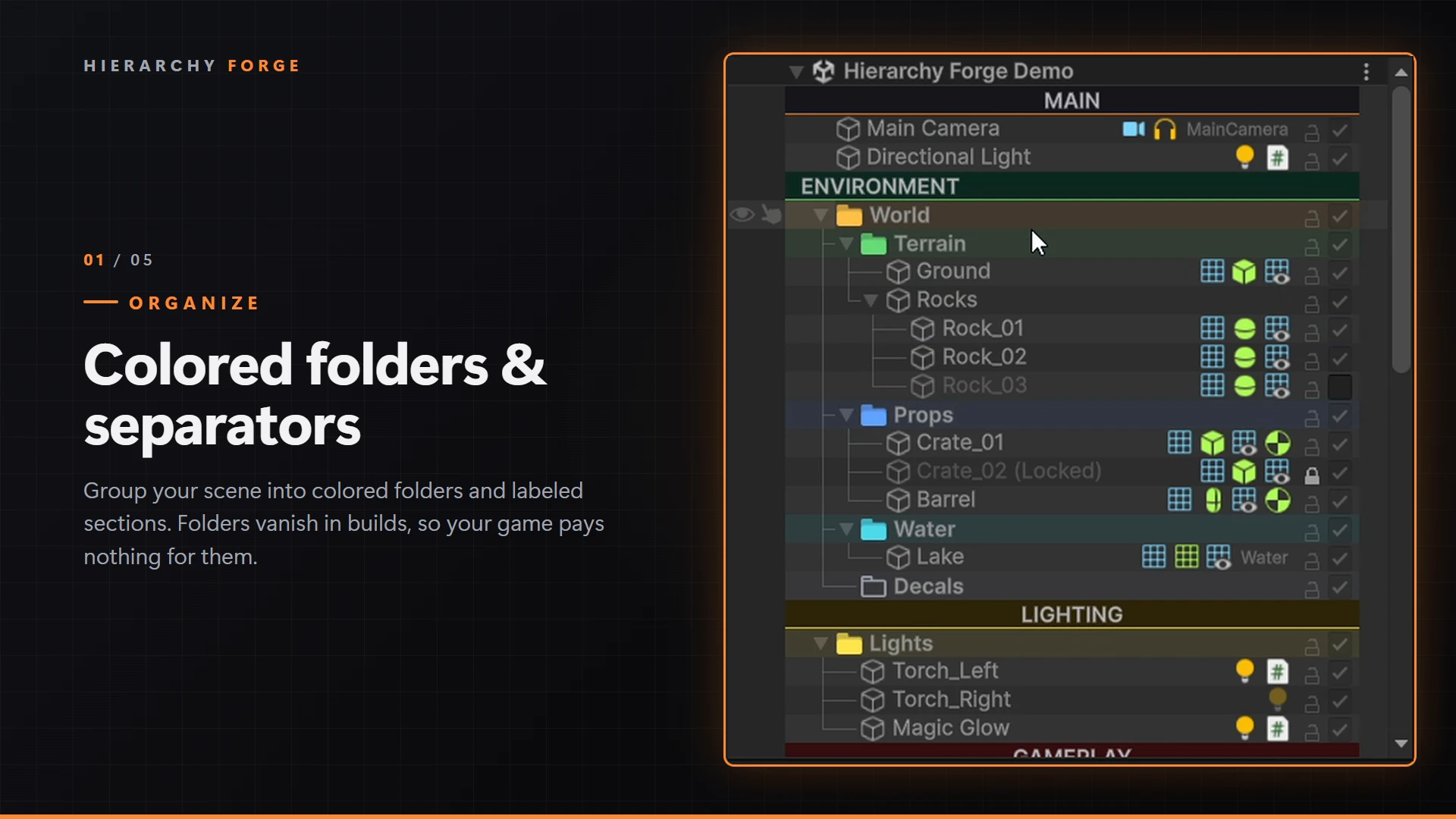
Folder options
| Option | What it does |
|---|---|
| Icon Color | Tint of the folder icon. |
| Bold Name | Draws the folder name in bold. |
| Use Custom Text Color | Uses Text Color for the name instead of the editor default. |
| Draw Background | Tints the whole row with Background Color. Keep the alpha low for a subtle look. |
Separators
A separator is a GameObject with a HierarchySeparator component, drawn as a full-width bar. The text on the bar is the GameObject's name, so rename the object to change it. Separators are tagged EditorOnly and stripped from builds.
| Option | What it does |
|---|---|
| Background Color | Fill color of the bar. |
| Draw Accent Line / Accent Color | A thin colored line along the bottom of the bar. |
| Text Color | Color of the label. |
| Alignment | Left, Center or Right. |
| Font Style | Normal, Bold, Italic or Bold and Italic. |
| Upper Case | Shows the name in upper case. |
Separators are meant to stay empty. If one has children, they are moved up one level when the separator is stripped from a build.
Row tools
Every row gets extra information on the right side. Items only appear when there's room, so they never cover the object's name.
| Tool | How it works |
|---|---|
| Active toggle | Turns the object on or off. If the row is part of the selection, every selected object is toggled. Undoable. |
| Lock | Makes the object and its components read-only and unpickable in the Scene view. Works on the whole selection. Undoable. |
| Component icons | One icon per component. Disabled components are faded. Click an icon to enable or disable that component. Hover or right-click it to open the peek inspector. |
| Missing scripts | A red warning icon appears for every missing script on the object. |
| Tag & layer | Shown only when the tag isn't Untagged or the layer isn't Default. |
| Tree lines | Lines connecting parents and children at every depth. |
| Row shading | Every other row is shaded slightly for easier reading. |
The read-only state of a locked object is saved with the scene. Scene-view picking is stored per user by Unity's scene visibility system.
Play Mode activity
In Play Mode, rows light up when something happens to them, so you can watch spawners, pools and state machines work in real time.
| Event | Default color |
|---|---|
| Object spawned | Green, plus a NEW badge |
| Object activated | Blue |
| Object deactivated | Orange |
| Component added, removed or toggled | Purple |
| Child destroyed | Red marker on the parent |
Parents get a colored bar on their left edge when something changes inside them, so collapsed folders still show activity.
Console badges
When a script logs with a context object, Hierarchy Forge counts the message on that object's row: red for errors, exceptions and asserts, yellow for warnings.
Debug.LogWarning("Health is low", this);
Debug.LogError("Could not find a path", gameObject);- Click a badge to see that object's messages, newest first. Double-click a message to copy it.
- Right-click a badge to clear it.
- Badges reset when entering and exiting Play Mode, or via Tools › Hierarchy Forge › Clear Console Badges.
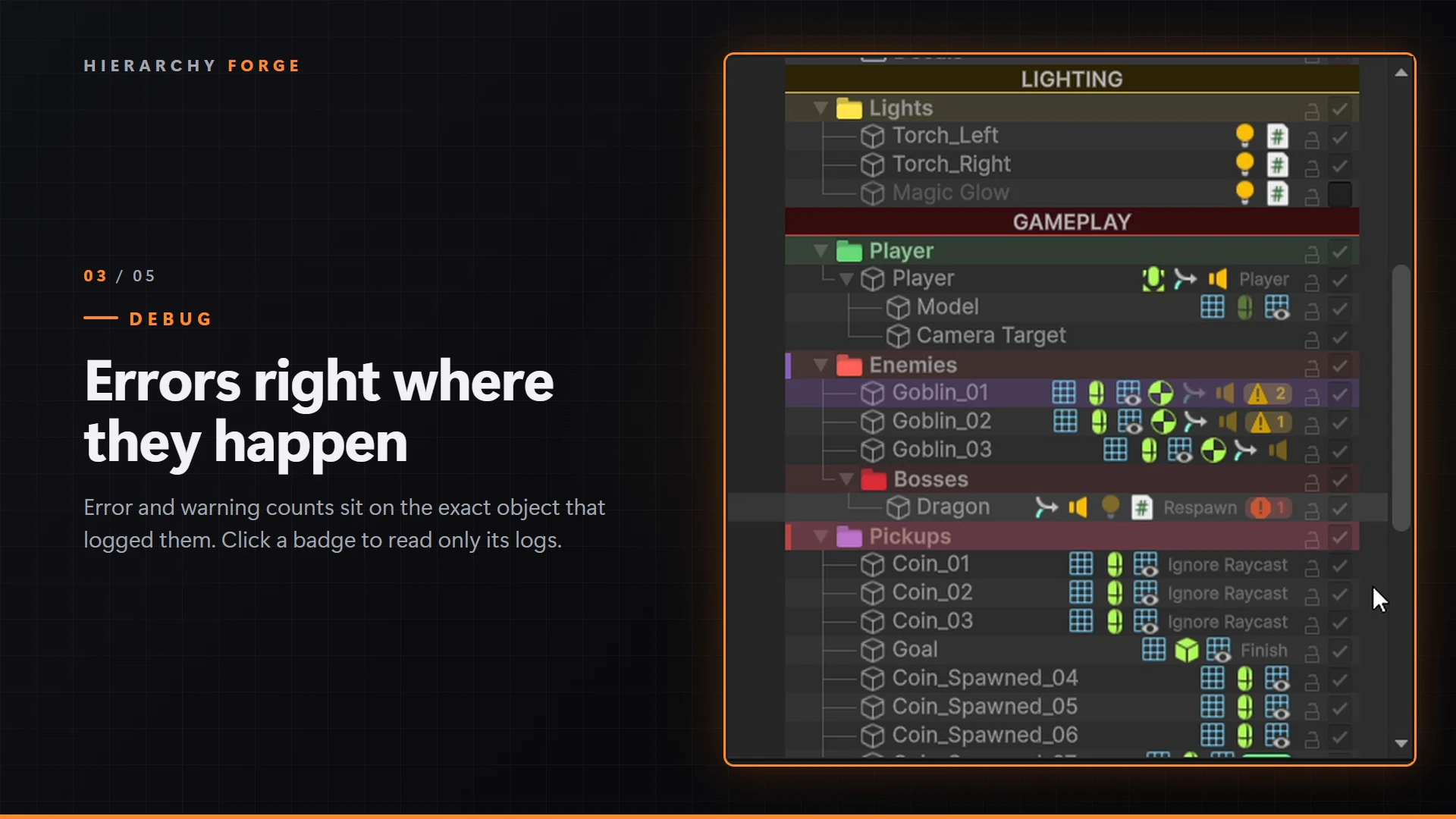
this as the second argument of Debug.Log is a good habit anyway: clicking the message in the Console then highlights the object too.Missing references
Hierarchy Forge scans each visible object's components and shows a badge when something is wrong:
| Badge | Meaning |
|---|---|
| N missing | A reference points to an object or asset that no longer exists (Unity shows it as Missing). Checked on all components. |
| N unset | An object field was never assigned (None). Checked on your own scripts only, not on built-in or package components. |
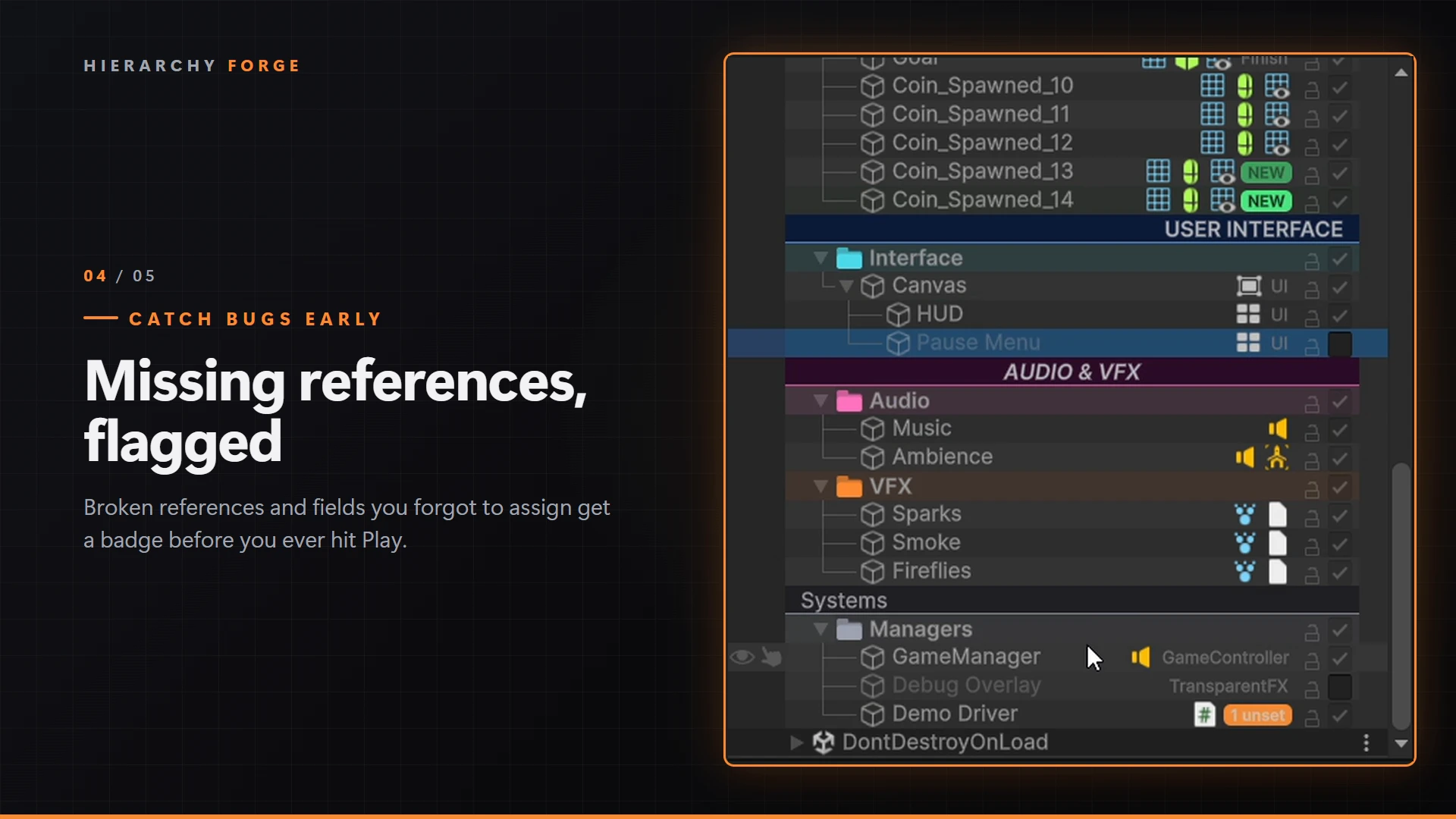
Hover a badge to see exactly which fields are affected. Click it to select the object.
Optional fields
Some fields are meant to stay empty. Add [HierarchyOptional] to exclude them:
using HierarchyForge;
using UnityEngine;

public class Enemy : MonoBehaviour
{
    [SerializeField] private Transform target;

    [HierarchyOptional]
    [SerializeField] private AudioClip tauntSound;
}
Array and list elements are never reported as unset. Scanning is cached and spread over several frames, so it stays fast in large scenes.
Peek inspector
Hover over a component icon for half a second, or right-click it, and a small inspector for that component pops up. It is fully editable, supports Undo, and does not change your selection.
- The header has an enable toggle and a Select button that selects the object.
- A popup opened by hovering closes when the mouse leaves it. Once you click inside, it stays open until you click elsewhere.
- The hover delay can be changed, or hover can be turned off so only right-click opens it.
Settings
Open Edit › Project Settings › Hierarchy Forge or Tools › Hierarchy Forge › Settings. Settings are saved to ProjectSettings/HierarchyForgeSettings.asset, so your whole team gets them through version control.
| Setting | Default | Description |
|---|---|---|
| General | ||
| Enabled | On | Master switch for all Hierarchy drawing. |
| Rows | ||
| Zebra Stripes | On | Shades every other row. |
| Zebra Strength | 0.035 | How strong the shading is. |
| Tree Lines | ||
| Show Tree Lines | On | Lines between parents and children. |
| Tree Line Color | Grey | Color of the lines. |
| Toggles | ||
| Show Active Toggle | On | Active checkbox on every row. |
| Show Lock Toggle | On | Lock button on every row. |
| Idle Toggle Opacity | 0.3 | Opacity of toggles in their default state, so active and unlocked rows stay quiet. |
| Component Icons | ||
| Show Component Icons | On | Component icons on the right side. |
| Hide Transform Icon | On | Skips Transform and RectTransform. |
| Max Component Icons | 6 | Maximum icons per row. |
| Click Icon To Toggle | On | Clicking an icon enables or disables the component. |
| Show Missing Scripts | On | Red warning icon for missing scripts. |
| Tags And Layers | ||
| Show Tag / Show Layer | On | Labels for non-default tags and layers. |
| Play Mode Activity | ||
| Show Activity Pulse | On | Row glow, NEW badges and parent markers. |
| Pulse Duration | 1.2 s | How long a row glows. |
| New Badge Duration | 3 s | How long the NEW badge stays. 0 turns it off. |
| Spawn / Activate / Deactivate / Component / Destroyed Color | See above | Color for each type of event. |
| Console Badges | ||
| Show Console Badges | On | Error counts on rows. |
| Console Include Warnings | On | Also shows warning counts. |
| Missing References | ||
| Show Missing References | On | Badge for broken references. |
| Flag Unassigned References | On | Also reports fields that are None. |
| Project Scripts Only | On | Only checks unassigned fields in scripts under Assets/. |
| Peek Inspector | ||
| Peek On Hover | On | Opens the peek inspector on hover. Right-click always works. |
| Peek Hover Delay | 0.5 s | How long to hover before it opens. |
| Build | ||
| Flatten Folders In Build | On | Removes folders in builds and moves their children up. |
| Flatten Folders In Play Mode | Off | Does the same when entering Play Mode. |
| Strip Separators In Build | On | Removes separators from builds. |
Menus & shortcuts
| Command | Where |
|---|---|
| Folder | GameObject › Hierarchy Forge › Folder (also in the Hierarchy right-click menu) |
| Separator | GameObject › Hierarchy Forge › Separator |
| Group Selection Into Folder | GameObject › Hierarchy Forge or Ctrl + Alt + G |
| Settings | Tools › Hierarchy Forge › Settings |
| Clear Console Badges | Tools › Hierarchy Forge › Clear Console Badges |
To change the shortcut, open Edit › Shortcuts and search for Hierarchy Forge.
Builds & Play Mode
When a scene is built, Hierarchy Forge processes it before it is saved into the player:
- Separators are removed.
- Folders are removed and their children move up one level at the folder's position in the Hierarchy. World positions don't change. Children of an inactive folder are set inactive.
In Play Mode folders stay in place by default, so the Hierarchy you debug looks like the one you edit. Turn on Flatten Folders In Play Mode if your code depends on the exact build hierarchy, for example transform.parent or sibling indices.
Extending (API)
Every Hierarchy feature is a class that derives from HierarchyRowFeature. Hierarchy Forge finds all such classes automatically, including yours. Put the script in an Editor folder. If it lives in your own assembly definition, add a reference to HierarchyForge.Editor.
Example: a STATIC badge
using HierarchyForge;
using UnityEngine;

public sealed class StaticBadgeFeature : HierarchyRowFeature
{
    private const string Label = "STATIC";
    private static readonly Color BadgeColor = new Color(0.3f, 0.6f, 1f);

    public override int Order => 940;

    public override void OnRowGUI(HierarchyRow row)
    {
        if (!row.GameObject.isStatic)
        {
            return;
        }

        if (row.TryReserveRight(HierarchyStyles.PillWidth(Label), out Rect rect))
        {
            HierarchyStyles.DrawPill(rect, Label, BadgeColor, Color.white);
        }
    }
}
HierarchyRowFeature
| Member | Description |
|---|---|
int Order | Drawing order. Lower draws first. For right-side items, lower is further right. |
bool DrawsOnSeparators | Whether the feature also runs on separator rows. Default false. |
bool IsEnabled(settings) | Return false to skip the feature, for example based on a setting. |
void OnRowGUI(row) | Called for every visible row and every IMGUI event. Check Event.current.type when drawing. |
HierarchyRow
| Member | Description |
|---|---|
GameObject, InstanceId | The object drawn on this row. |
ItemRect | Unity's row rect, starting at the object's icon. |
FullRect | The whole row width, including indentation. |
Depth | Number of parents. |
IsSelected, IsWindowFocused | Selection state, for matching Unity's highlight colors. |
Folder, Separator, IsFolder, IsSeparator | The folder or separator component, if any. |
Settings | The current HierarchyForgeSettings. |
TryReserveRight(width, out rect) | Reserves space on the right side. Returns false when there isn't room without covering the name. |
Built-in order values
Row shading −100 · Tree lines −50 · Folders 0 · Activity glow 5 · Separators 10 · Active toggle 900 · Lock 910 · NEW badge 915 · Console badges 920 · Missing references 925 · Tag & layer 930 · Component icons 950
Helpers
HierarchyStyles has drawing helpers so custom features match the built-in look: DrawPill, PillWidth, DrawBadge, BadgeWidth, GetComponentIcon, RowBackground, WithAlpha and TempContent. ConsoleLogTracker, MissingReferenceScanner and ActivityTracker expose their data if you want to build on it.
Demo scene
Open Assets/HierarchyForge/Demo/Hierarchy Forge Demo.unity. It shows folders, separators, locked and inactive objects, tags and layers. Press Play: the Demo Driver object (under Managers) spawns coins, toggles lights and objects, and logs warnings and errors, so every feature is visible. Its Required Target field is empty on purpose to show the unset badge.
The Demo folder can be deleted at any time. Nothing else depends on it.
FAQ
Does it affect my game's performance?
No. All features are editor-only. Folders and separators are removed from builds, and no Hierarchy Forge code runs in your player.
Does it slow down the editor?
Only visible rows are drawn. Missing-reference scans are cached and spread over frames, and Play Mode tracking is throttled. Any feature can be turned off in Settings.
Why doesn't my error show a badge?
The message has to be logged with a context object, for example Debug.LogError("...", this). Messages without a context can't be tied to an object.
Too many "unset" badges?
Mark optional fields with [HierarchyOptional], or turn off Flag Unassigned References to only see broken references.
Does it work with prefabs and Prefab Mode?
Yes. Everything works in Prefab Mode, and right-side items leave room for Unity's prefab arrow.
How do I remove Hierarchy Forge?
Delete Assets/HierarchyForge. Folder and separator objects stay in your scenes as empty GameObjects with a missing script. Remove those components first if you want a clean result.
Changelog
1.0.0 Initial release
- Folders and separators with full styling, auto-removed from builds
- Play Mode activity pulse, NEW badges and parent markers
- Console badges with a per-object log viewer
- Missing reference badges and the
[HierarchyOptional]attribute - Peek inspector on hover and right-click
- Component icons with click-to-toggle, missing script warnings
- Active and lock toggles, tree lines, row shading, tag and layer labels
- Group Selection Into Folder shortcut
- Project Settings page and extensible API
- Demo scene
Support
Found a bug or have an idea? Get in touch through mario-gamedev.com. Please include your Unity version and, if possible, a screenshot of the Hierarchy and any Console errors.
If Hierarchy Forge saves you time, a review on the Asset Store page helps a lot.